Skip to content

We use cookies to improve your experience on our website. See our privacy policy.

  • Games
  • Guides
  • Support
  • Webcams
  • Pricing
    • Get Started
    • Extensions
    • Developers
    • Affiliates
    • Blog
Account Steam TRY RISK-FREE

  • Games
  • Guides
  • Support
  • Webcams
  • Pricing
    • Get Started
    • Extensions
    • Developers
    • Affiliates
    • Blog
    • Standalone · Account
    • Steam
TRY RISK-FREE
Record or Stream with the Beam Eye Tracker

Turn your webcam or phone into an eye tracker for your recordings or live streams following these steps
setup THE BEAM EYE TRACKER for recording and streaming

1

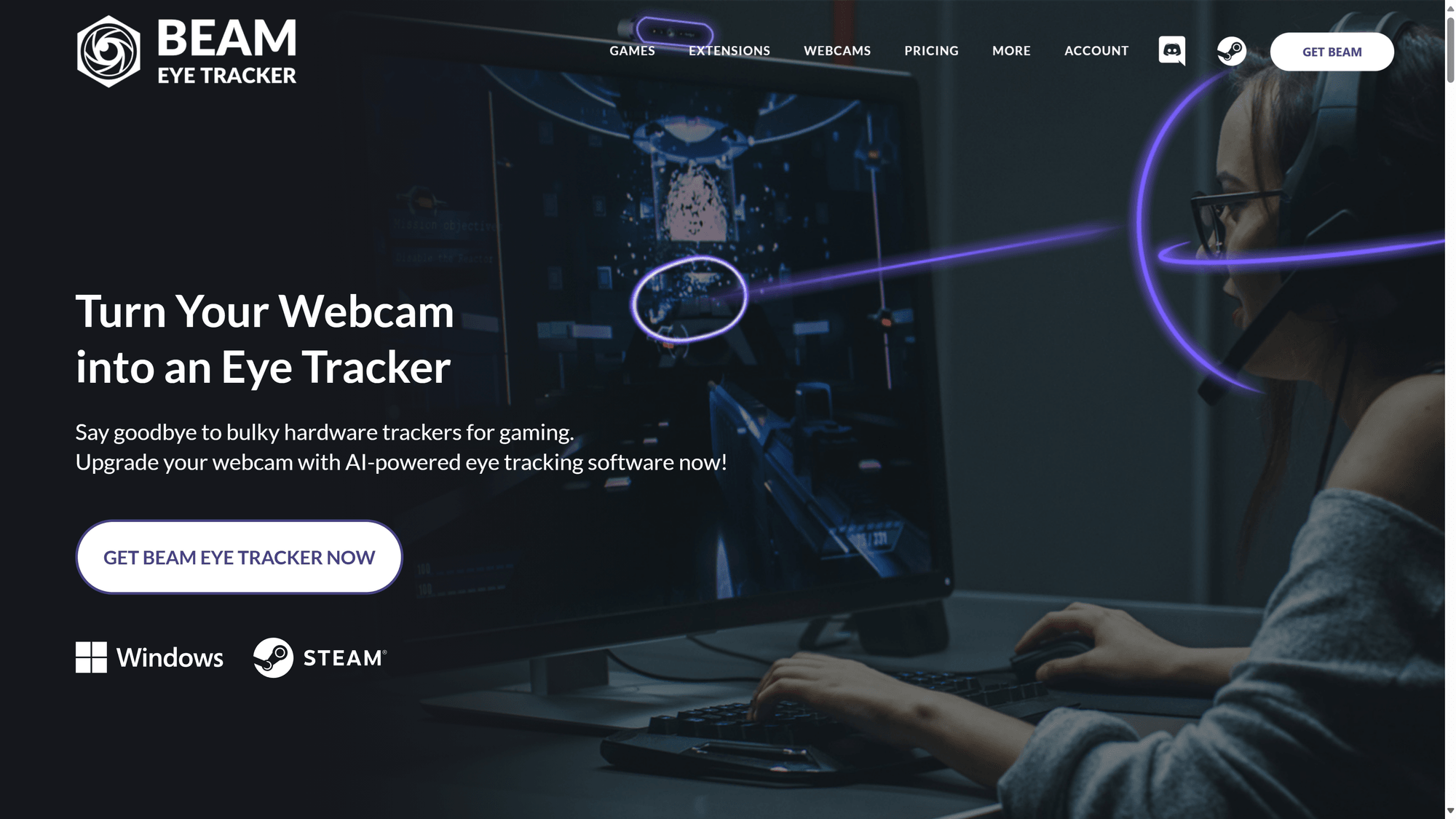
Get the Beam Eye Tracker

Get the Beam Eye Tracker and follow the instructions.

Note: If the Beam Eye Tracker icon is not visible in your taskbar, click on the up arrow to display all tray apps. Then, drag the Beam Eye Tracker icon to your taskbar for easy access.

Beam Eye Tracker - Homepage Screenshot

2

Hide the Eye Tracking Overlay in the settings (optional)

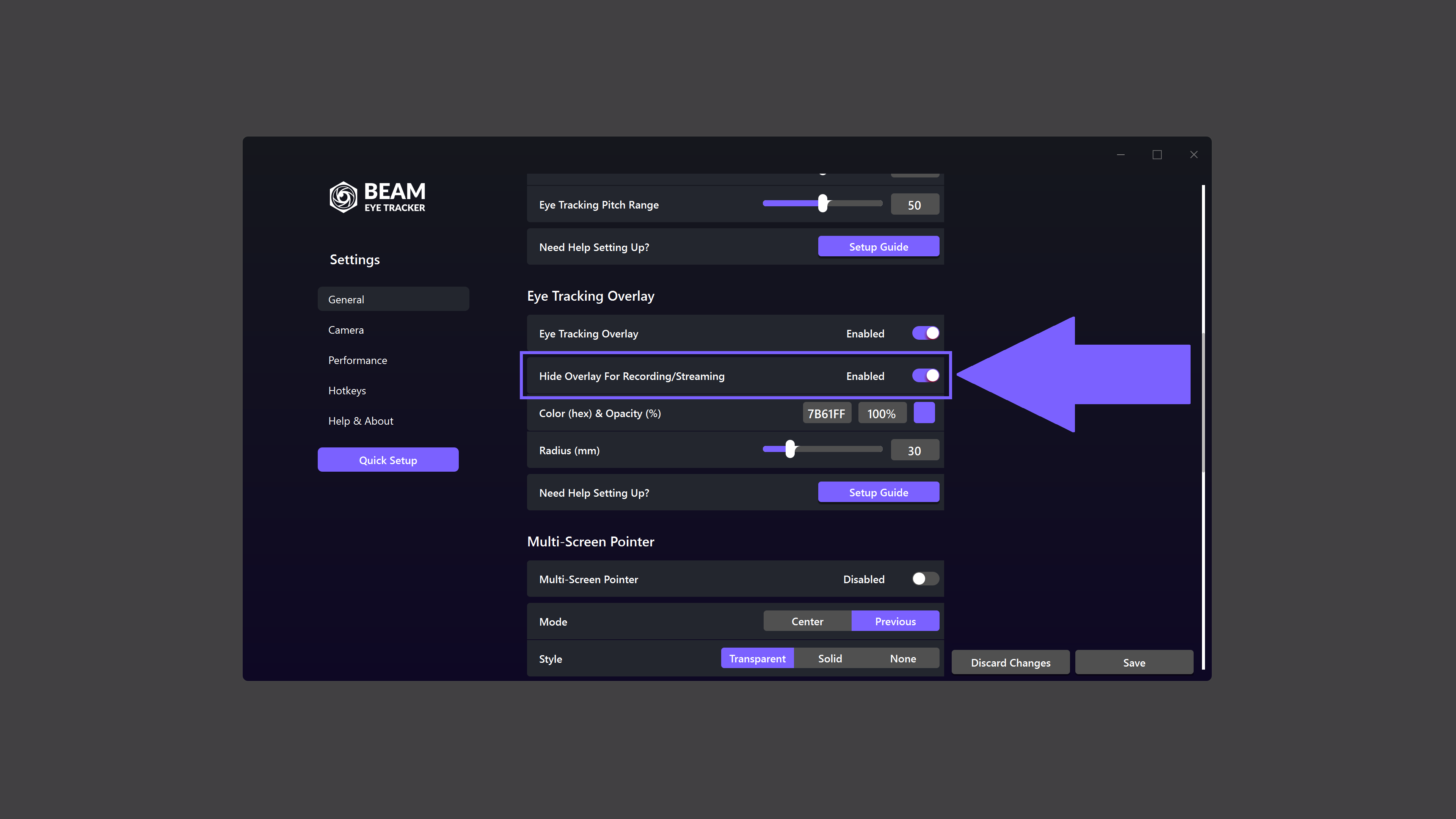
To avoid distractions, you can choose to hide the Eye Tracking Overlay from your view while still capturing it with recording and streaming tools like OBS for later review or sharing with your audience.

To hide the overlay, go to Settings > General and scroll down to the Eye Tracking Overlay section. There, enable the toggle to Hide Overlay for Recording/Streaming.

Beam Eye Tracker: hide the Eye Tracking Overlay in OBS

3

Download and install OBS Studio (or equivalent)

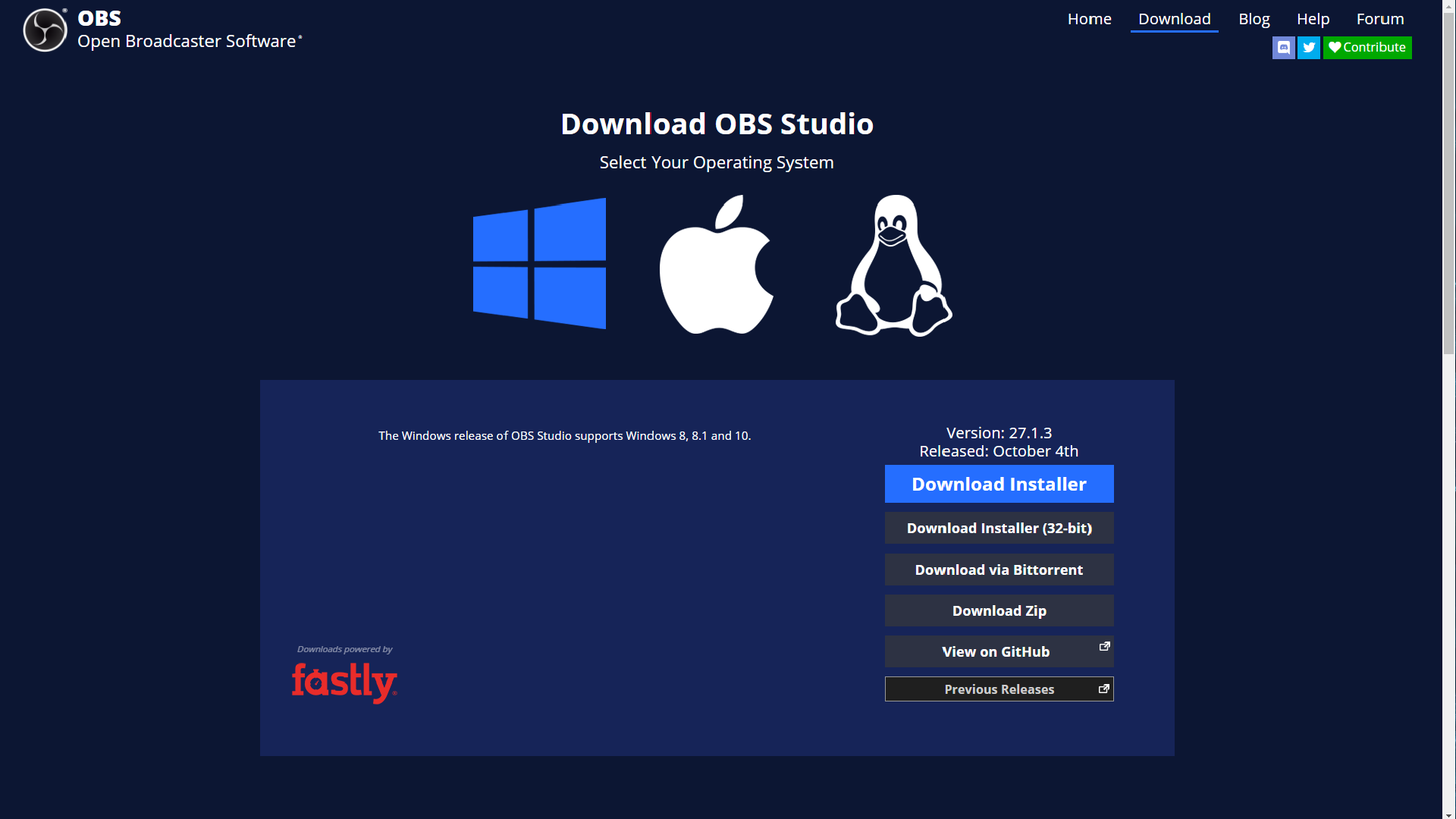
Download the free open-source OBS Studio software for your PC (or Streamlabs or equivalent).  The software provides video recording and live streaming capabilities on Twitch, Youtube, and other streaming platforms.


Other recording live stream software options include XSplit and Streamlabs.

OBS Studio download

4

Add a Window Capture for the Eye Tracking Overlay

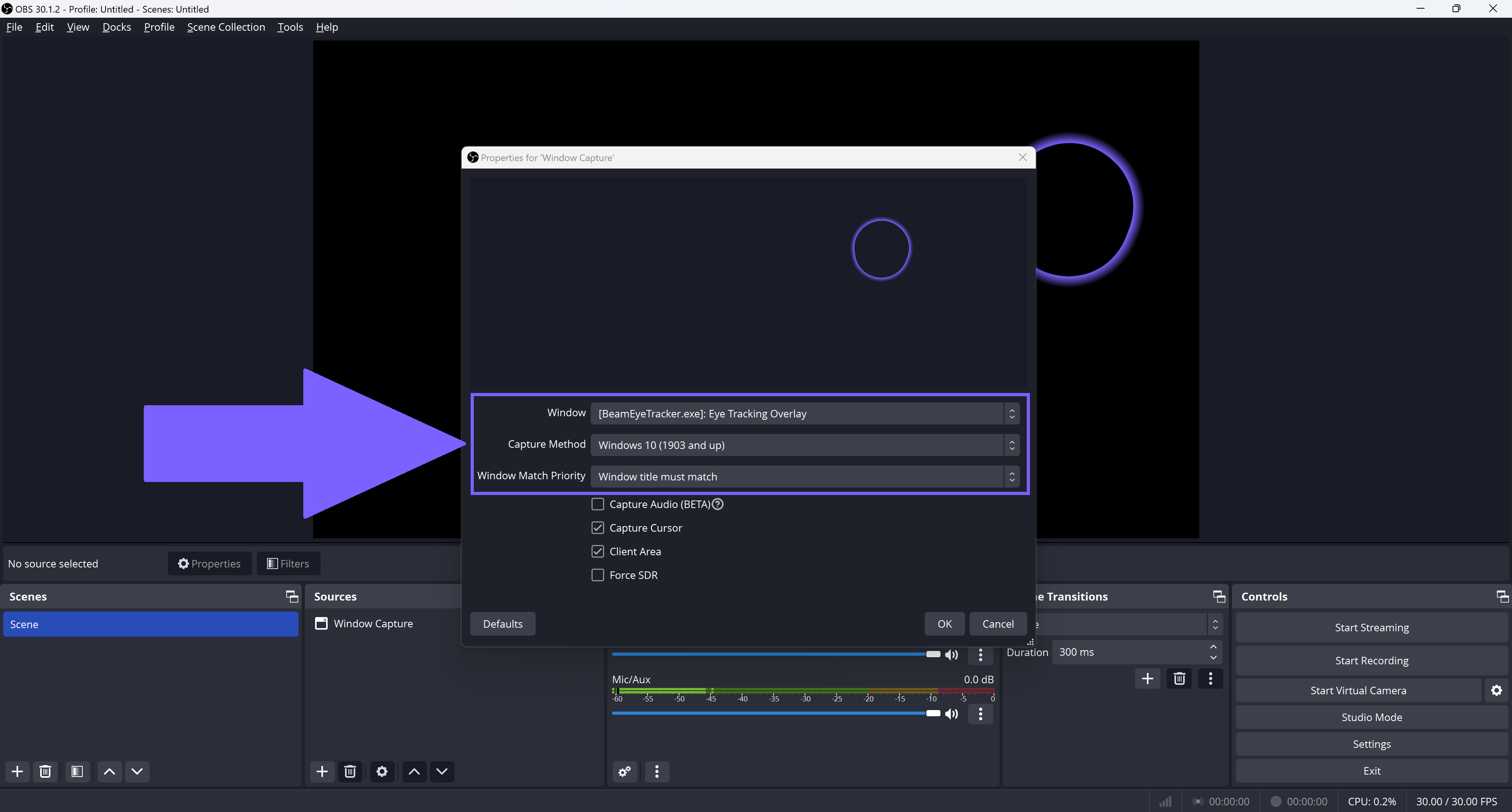
Click the “+” sign and select Window Capture from the OBS Studio sources panel.  Under Create New, either rename the Window Capture or keep the default name.
Click OK.

In the Window dropdown list, select the [BeamEyeTracker.exe]: Eye Tracking Overlay option.
In the Capture Method dropdown, select Windows 10 (1903 and up).
In the Window Match Priority dropdown, select Window title must match.
Click OK.

OBS - Beam Eye Tracker Overlay - Windows

Hundreds of Supported PC Games

Star Citizen
Star Citizen
Microsoft Flight Simulator 2024
Euro Truck Simulator 2
DCS World
DCS World
War Thunder
War Thunder
F1 25
F1 25
Farming Simulator 25
BeamNG.drive
BeamNG Drive
Arma 3 Cover
Arma 3
Assetto Corsa
Assetto Corsa
Elite Dangerous
Elite Dangerous
X-Plane 12
X-Plane 12
Beam Eye Tracker - Supported Games Selection
Beam Eye Tracker – Supported Games Selection
VIEW SUPPORTED GAMES
If you're using the legacy iOS Edition, please use the setup guide below. However, we strongly recommend updating your software for the best experience.
Minimum Requirements
  • PC with Windows 10 (or later)
  • iPhone or iPad that supports Face ID and iOS 13 (or later)
  • Phone stand

1

Download and install the Beam iOS app and the Beam PC software

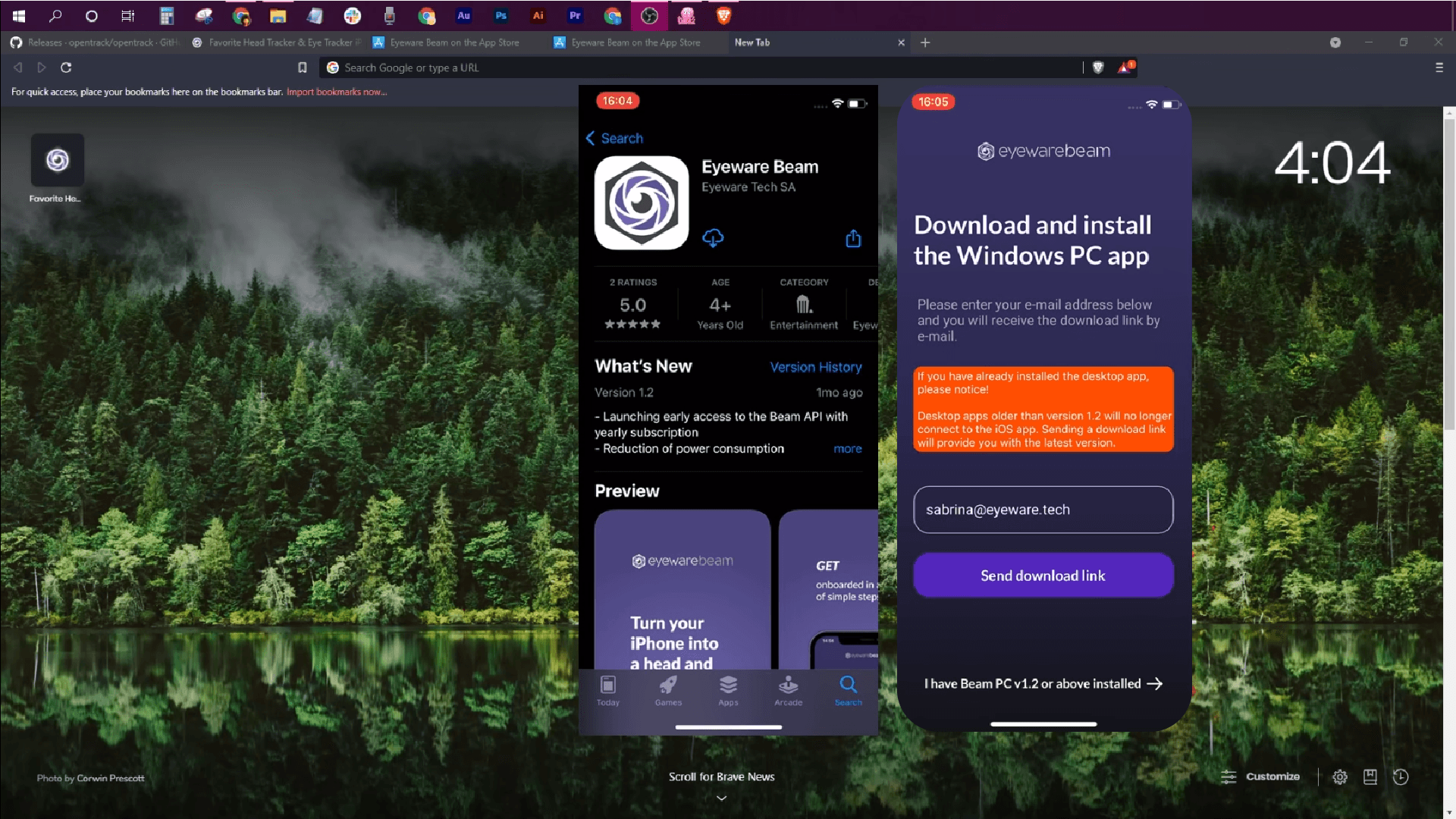
The iOS app for your iPhone or iPad captures your eye movements and accompanying Eyeware PC software translates those movements into an on-screen eye gaze bubble overlay to easily see where you are looking  in games and streams.

Download the Eyeware Beam iOS app from the app store. As you are installing the app, you will be asked to enter your email address to receive the download link for the accompanying PC software installer. Download and install the software on your PC.

iOS app download and PC installer link screen

2

Turn your iPhone or iPad into an eye tracker

Turn your iPhone or iPad into an eye tracking device with our quickstart guide.
Please complete the quickstart guide first before moving to the next step.

iPhone set up as a head tracker

3

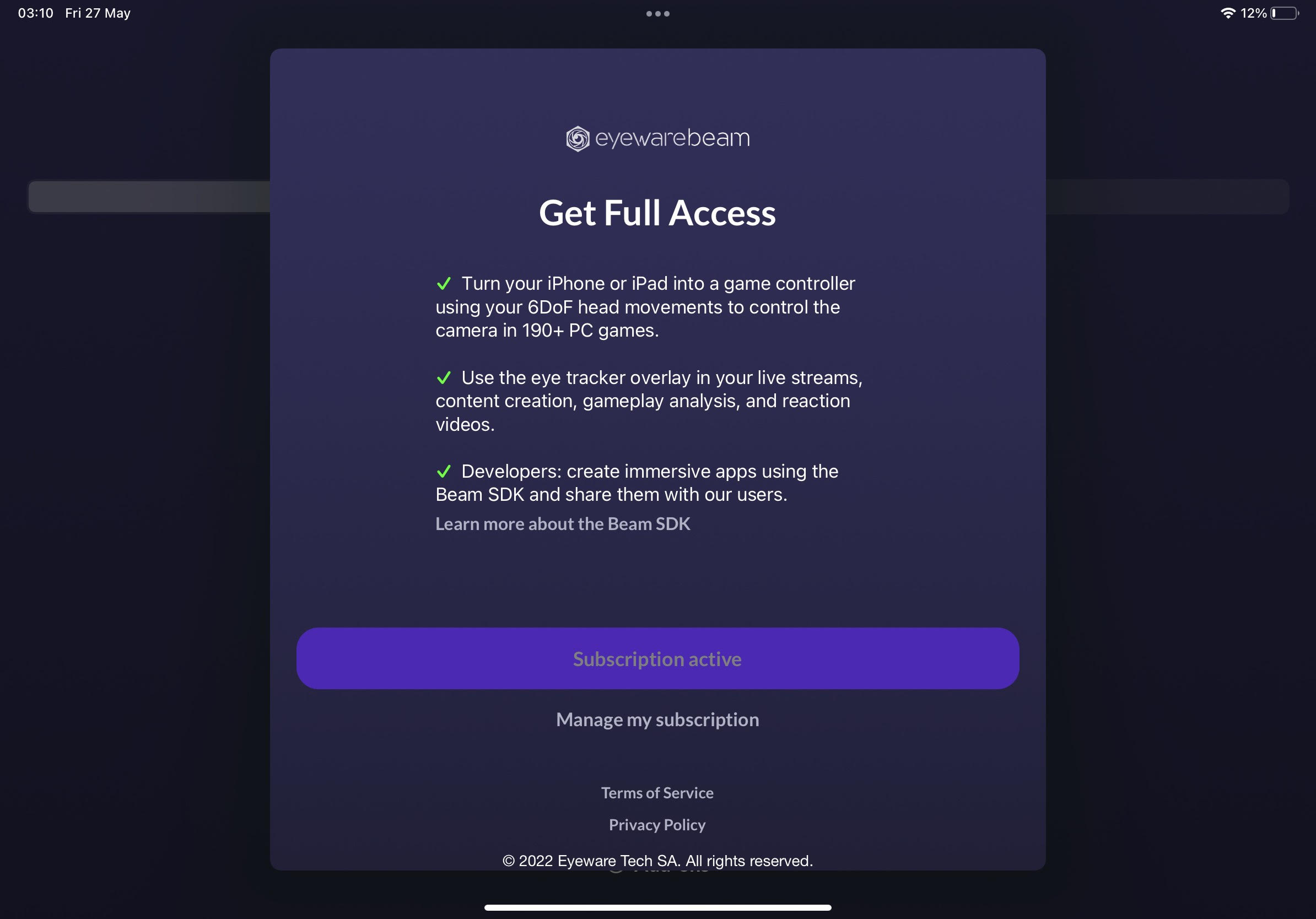
Buy a subscription to disable the eye tracker overlay watermark

A monthly or annual paid subscription is required to use the Eye Tracking Overlay gaze bubble without a watermark. A subscription also allows you to hide the overlay while streaming. Within the app, tap on the Settings icon > Reminders > Subscriptions. You will then be brought through a series of subscription purchase and confirmation steps to complete the transaction.

Subscription screen in the iOS app

4

Download and install OBS Studio

Download the free open-source OBS Studio software for your PC.  The software provides video recording and live streaming capabilities on Twitch, Youtube, and other streaming platforms.

Other live stream software options include XSplit and Streamlabs.

OBS Studio download

5

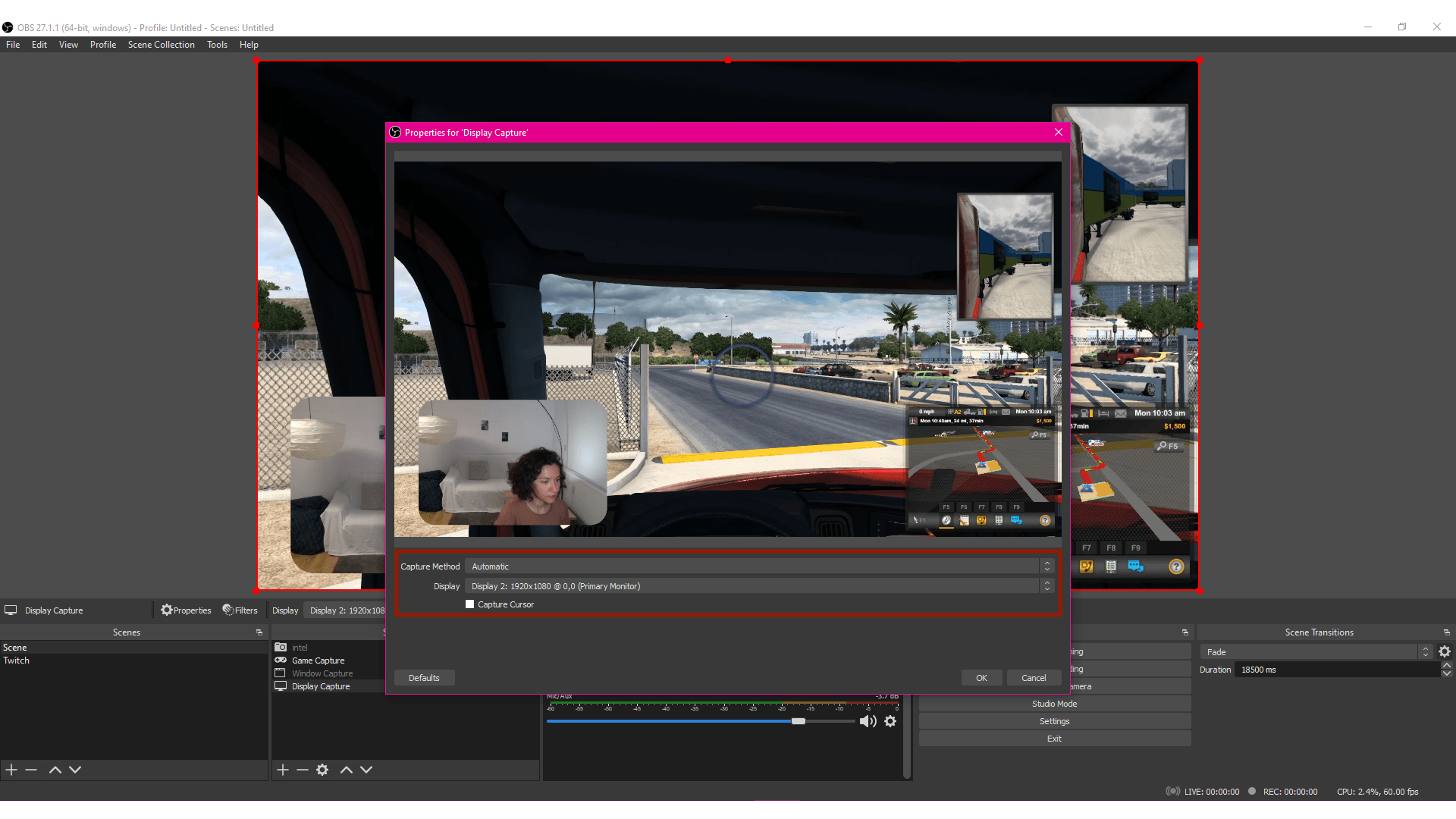
Add a Display Capture

Click the “+” sign and select Display Capture under the sources panel in OBS Studio. Locate the Create New tab and rename the Display Capture or keep the default name. Click OK.

Select the screen you want to share in your recording or livestream from the Display dropdown list. Click OK.

OBS Studio: add a Display Capture

6

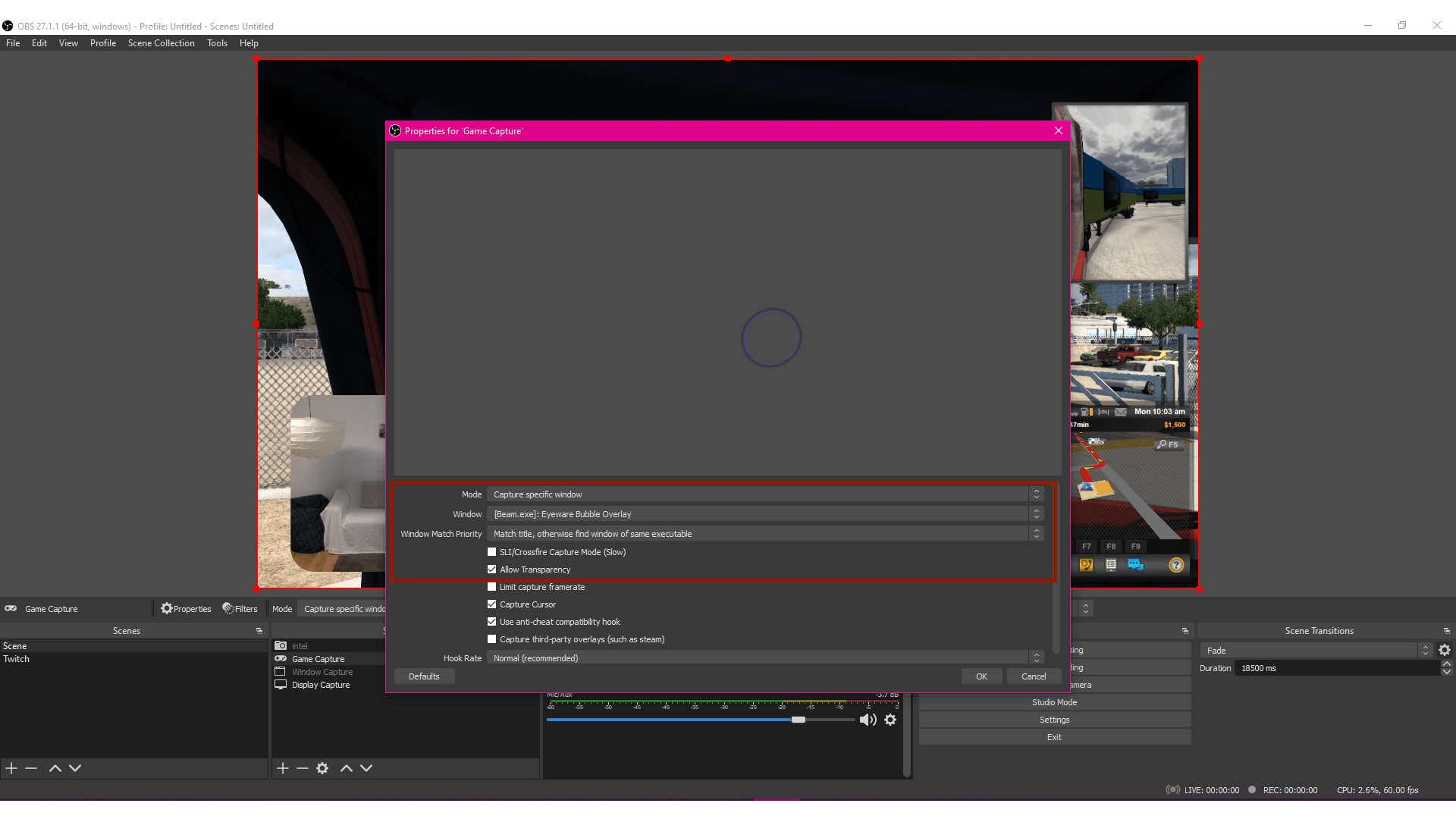
Add a Game Capture

Click the “+” sign and select Game Capture located in the OBS Studio sources panel.  Under Create New rename this Game Capture or keep the default name. Click OK.

From the Mode dropdown list select the Capture Specific Window option. From the Window dropdown list, choose the [Beam.exe]: Eyeware Bubble Overlay option. 

Select the Allow Transparency.
Note: Some PCs require the SLI/Crossfire Capture Mode (Slow) checkbox to be activated as well.
Click OK.

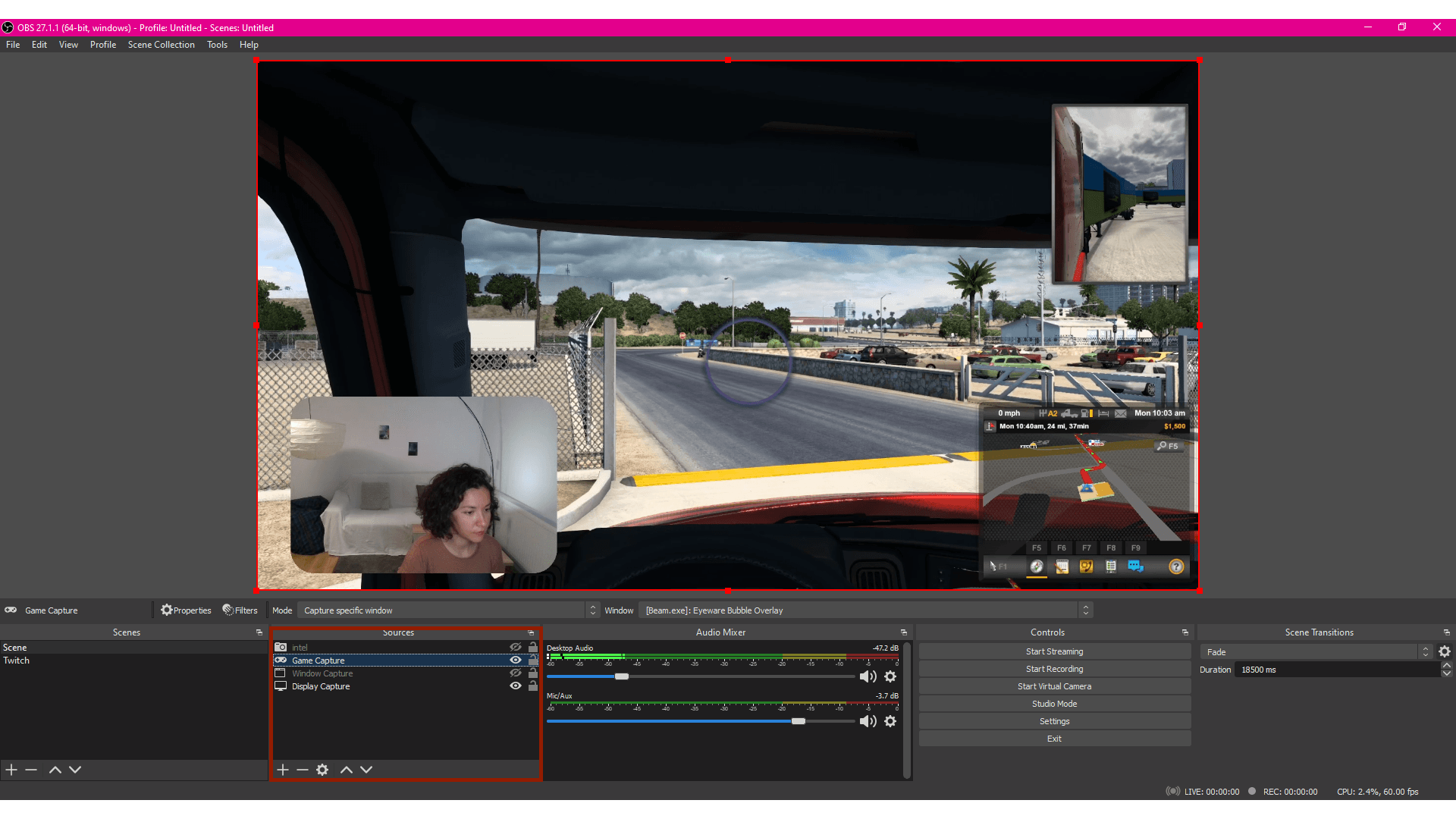
OBS Studio: add a Game Capture of the Beam overlay

7

Make the game capture appear first in the OBS sources panel list

In your OBS Sources panel, make sure that the game capture is at the top of the list. The Game Capture must be listed before the Display Capture for the Eyeware Beam Eye Gaze Bubble Overlay to be visible.

OBS Studio: Game Capture above Display Capture in Sources

8

Start streaming or recording your screen with eye tracking enabled

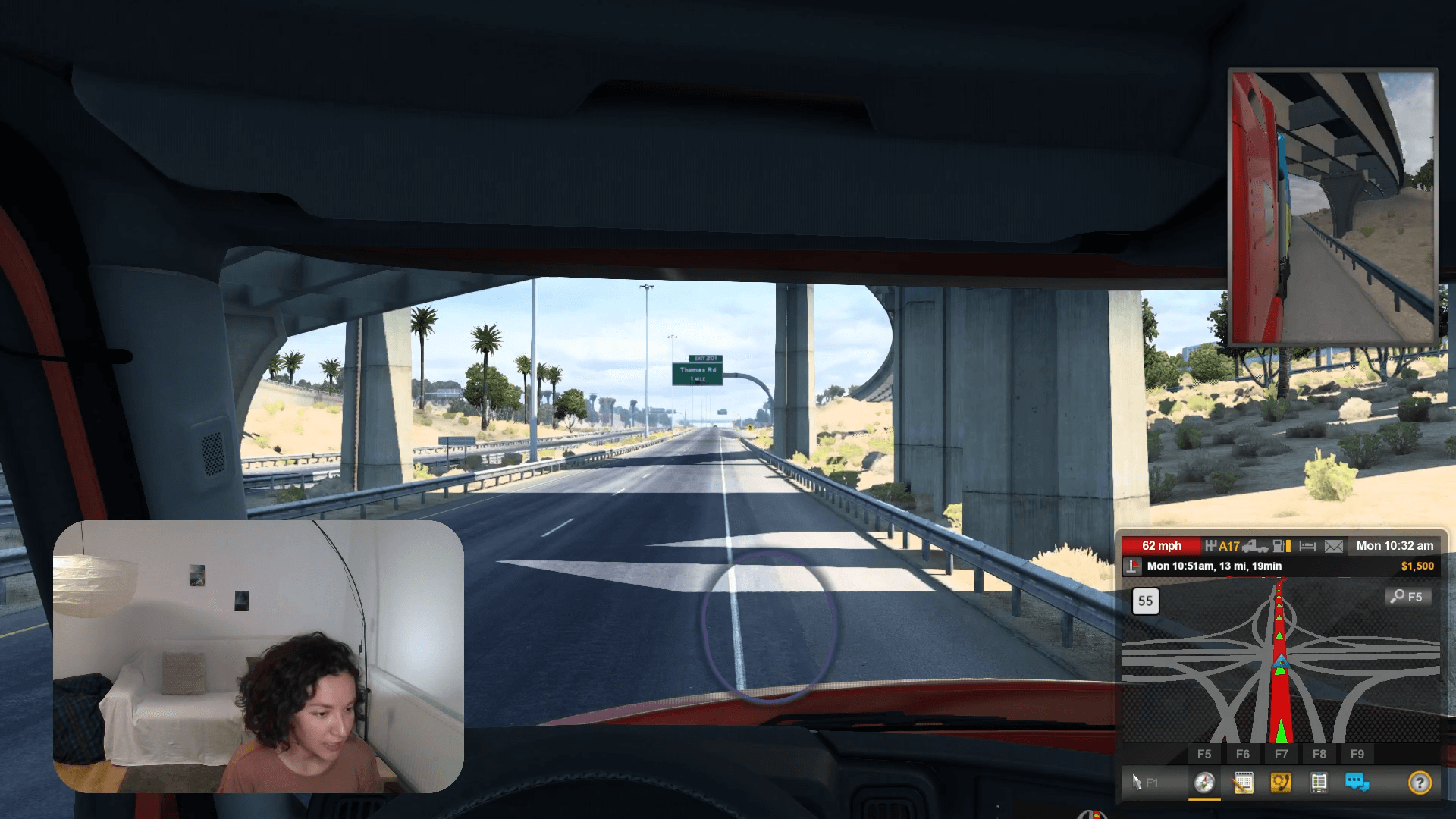
You are all set up to record your PC screen or live stream on Twitch, Youtube, and other streaming platforms. The Eyeware Beam Eye Gaze Bubble Overlay will allow you and your viewers to easily see where you are looking. Use eye tracking to create more insightful content for yourself and your viewers!

Streaming with the Eye Tracking Overlay in OBS Studio
Note
Eyeware Beam eye tracking only works when both the iOS Eyeware Beam app and the Eyeware Beam Windows PC software from step 1 is installed. You need to install OBS Studio to enable live streaming with eye tracking.

If you can’t find the Eyeware Beam computer application on your screen, it might be running in the background. You can find the app with the purple logo in the system tray menu, usually located at the bottom right of your screen.

  • Discord
  • Steam
  • Reddit
  • YouTube
  • Twitter
  • Instagram
  • Facebook
  • TikTok
English
  • English
  • Deutsch
  • Español
  • Français
  • Italiano
  • Polski
  • Português
  • Русский
  • 日本語
  • 한국어
  • 简体中文
  • 繁體中文

© Eyeware Tech SA  |  Terms  |  Privacy  |   Swiss Flag  Swiss Software