
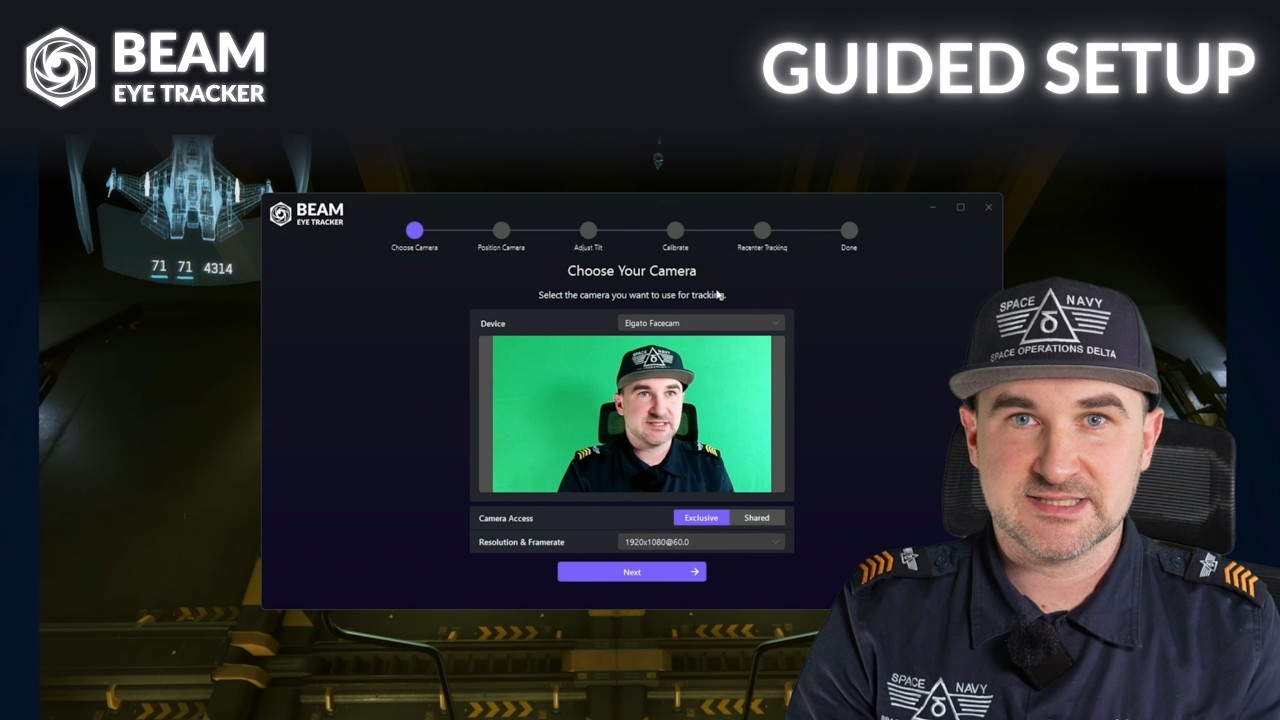
Open the Beam Eye Tracker, go to Tracker > Guided Setup, and click Get Started.Requires v2.5.5 or newer.
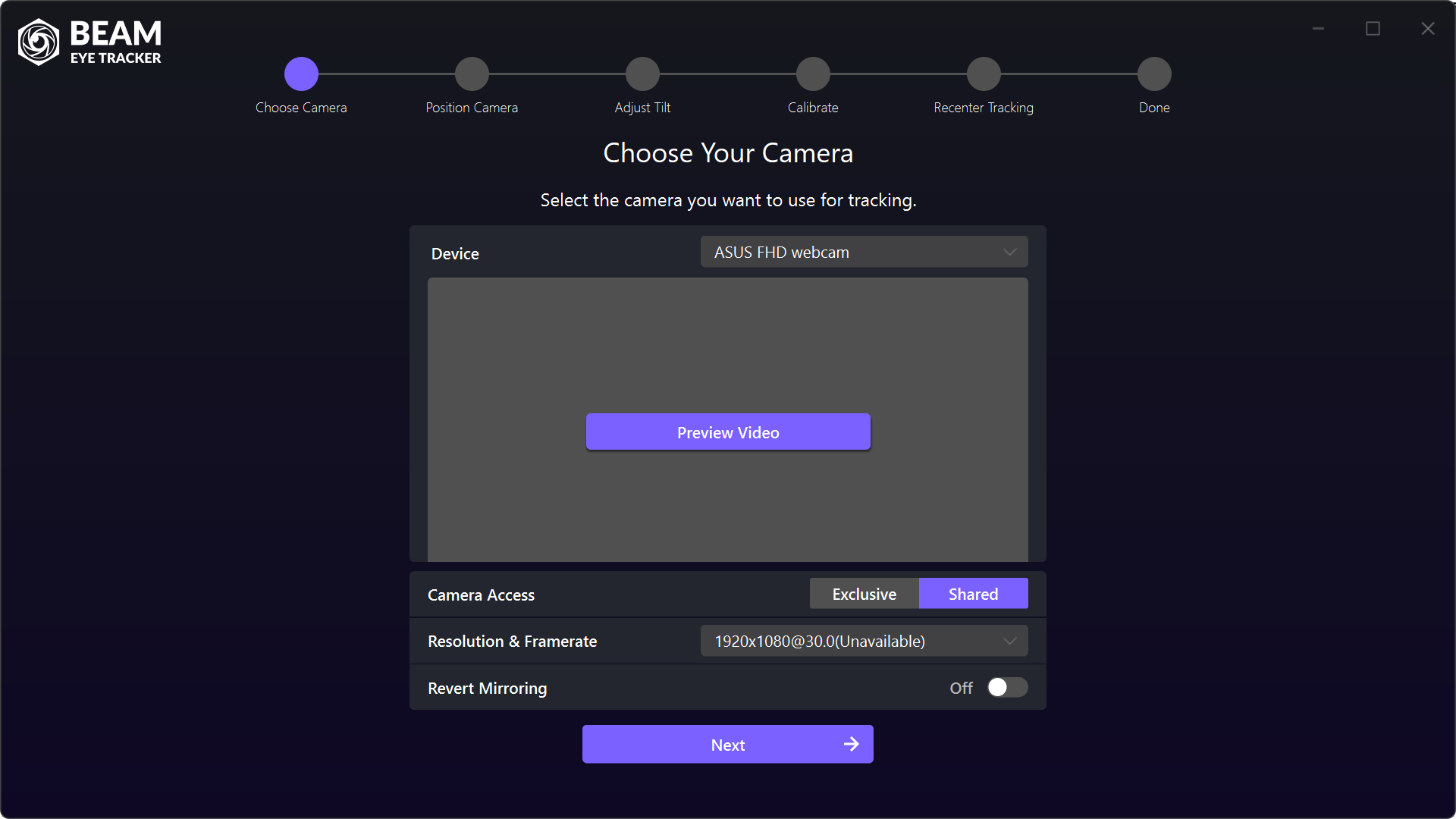
Choose Your Camera
Select the camera you want to use for tracking.
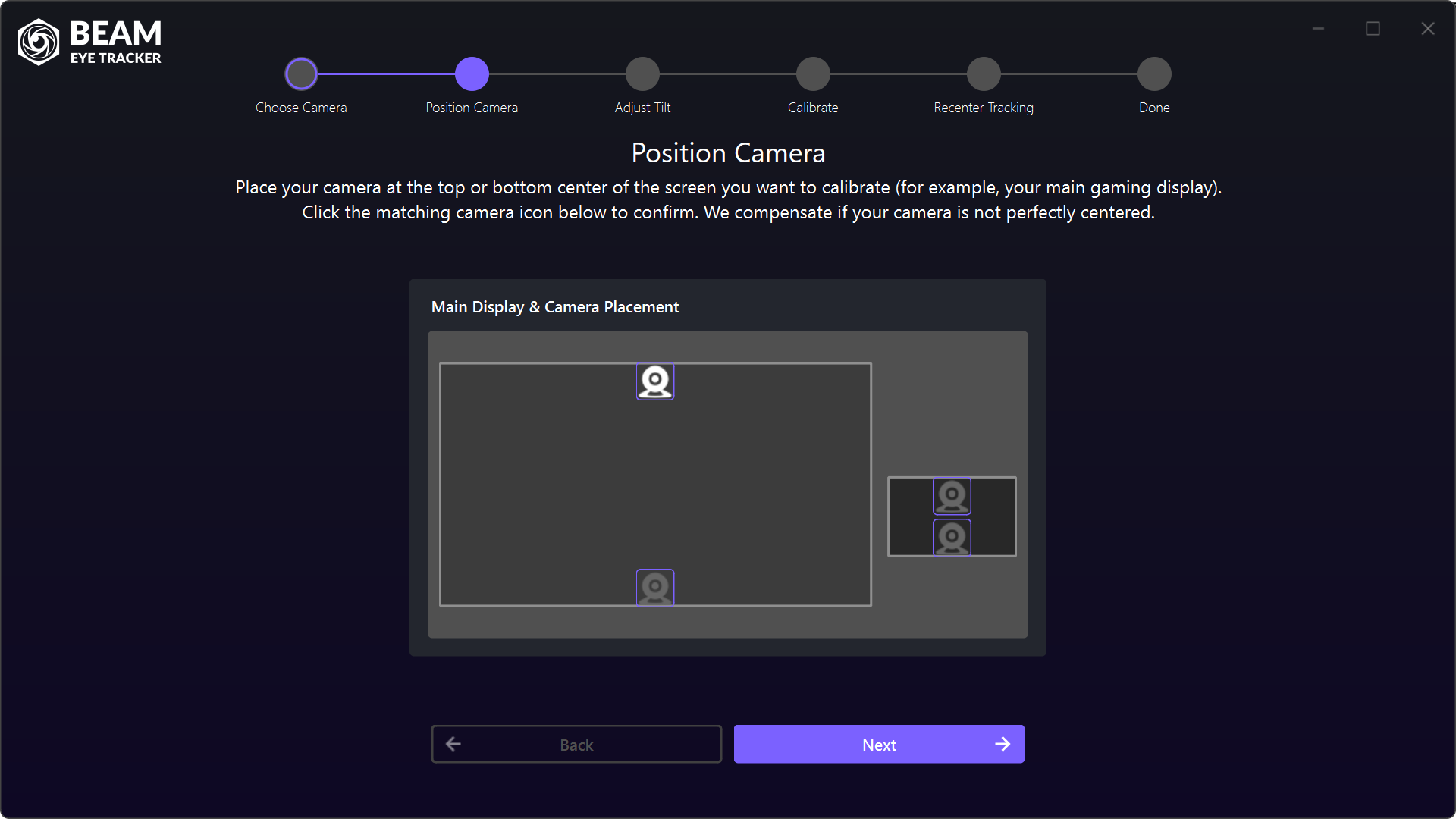
Position Camera
Place your camera at the top center of your main gaming display and select the matching camera position. Beam compensates if your camera is not perfectly centered.
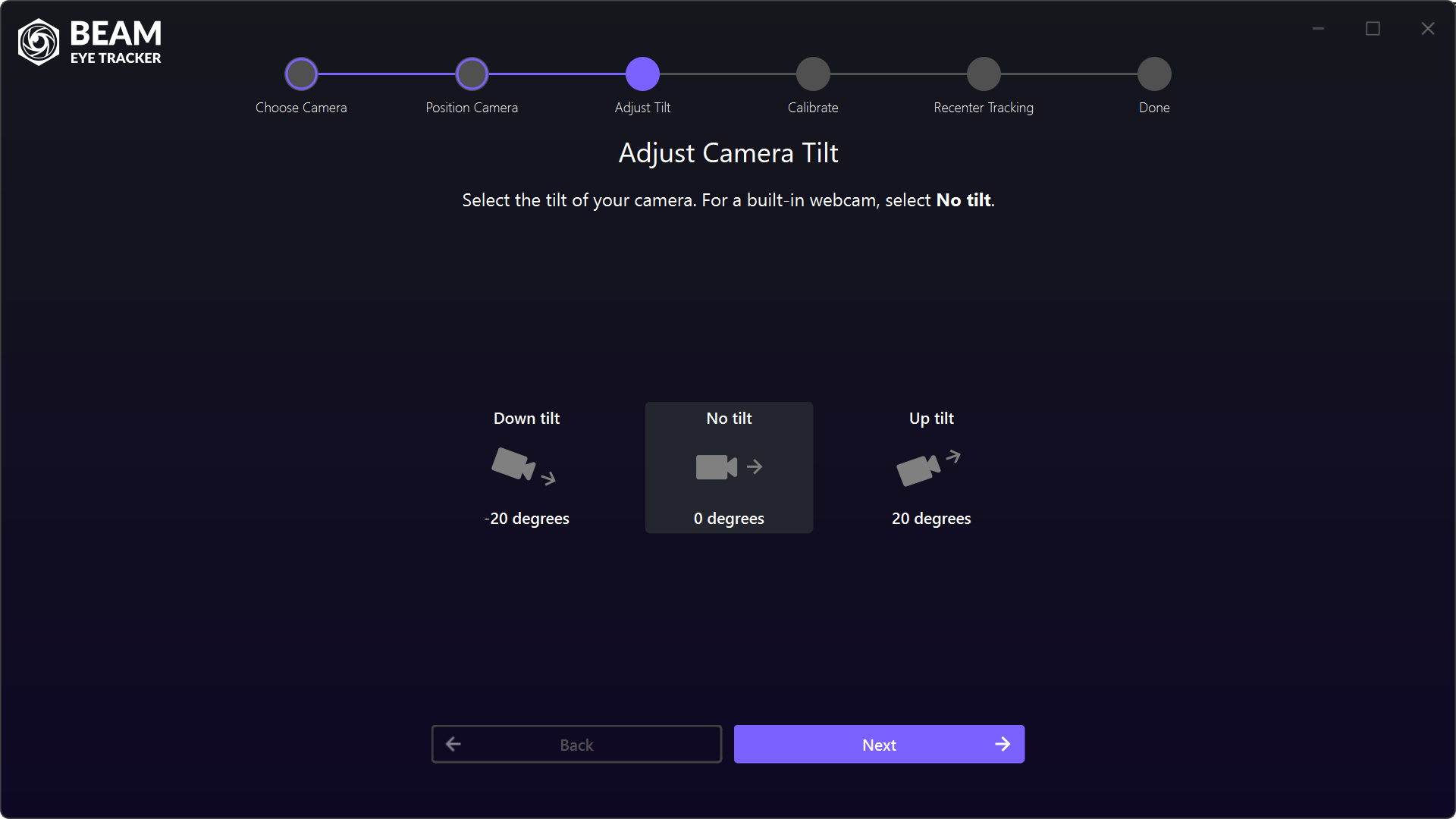
Adjust Camera Tilt
Select the tilt of your camera. For a built-in webcam, select No tilt.
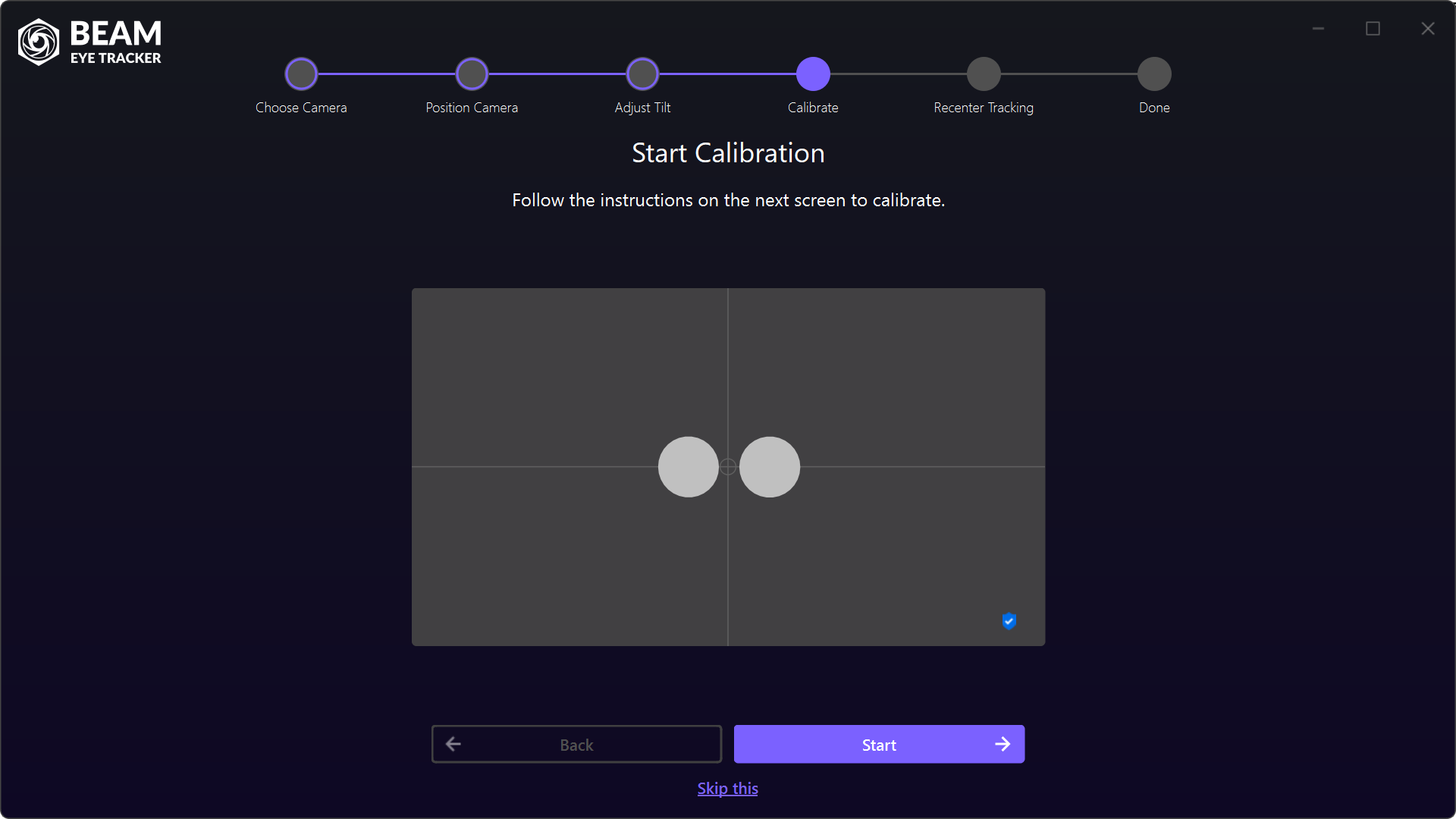
Start Calibration
When you reach this screen, you should see two grey eye blobs in the camera preview. That means Beam is detecting your face. Click Start to begin calibration.
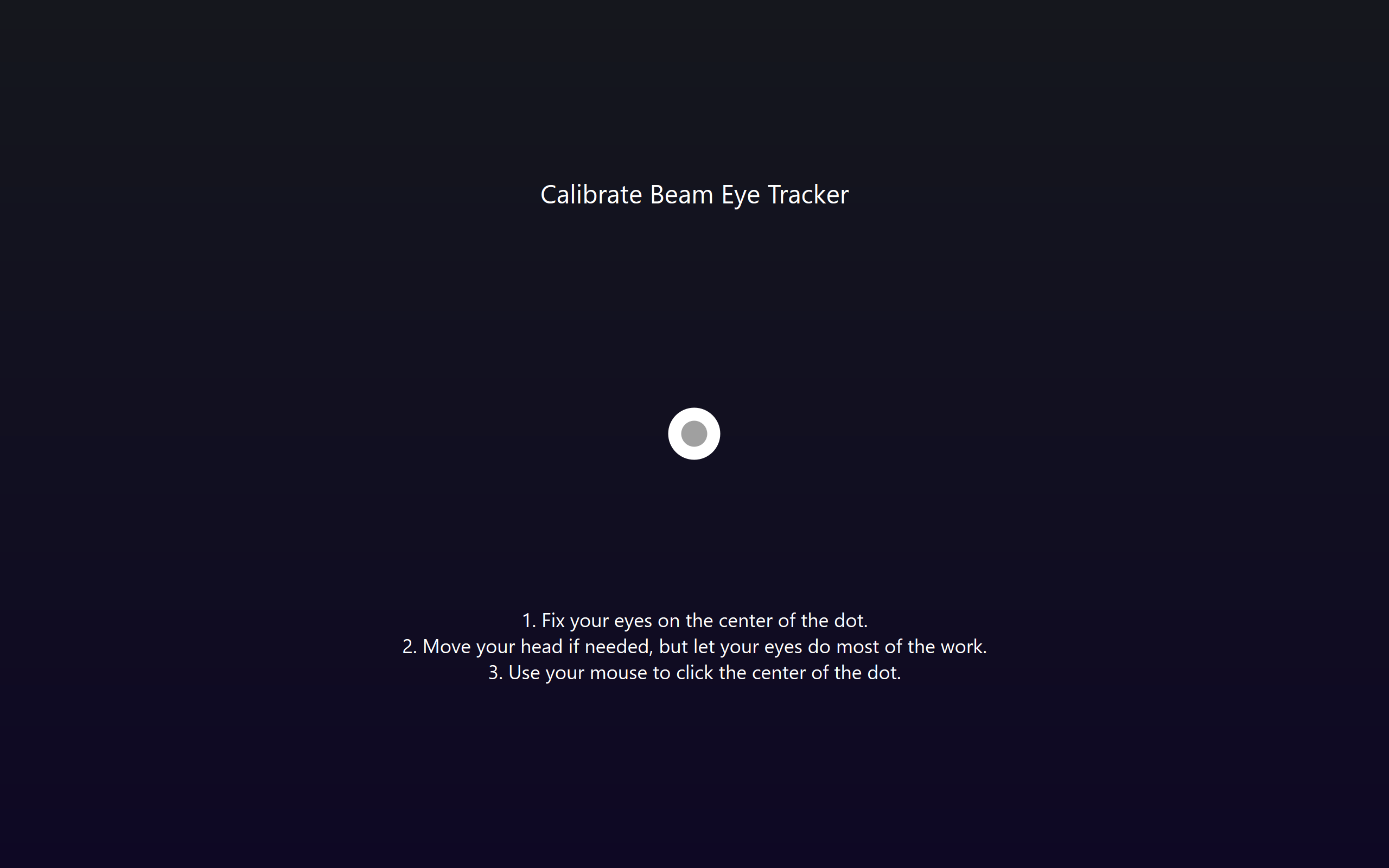
Calibrate
Five calibration dots will appear one by one. Fix your eyes on the center of each dot. Move your head if needed, but let your eyes do most of the work. Use your mouse to click the center of the dot.
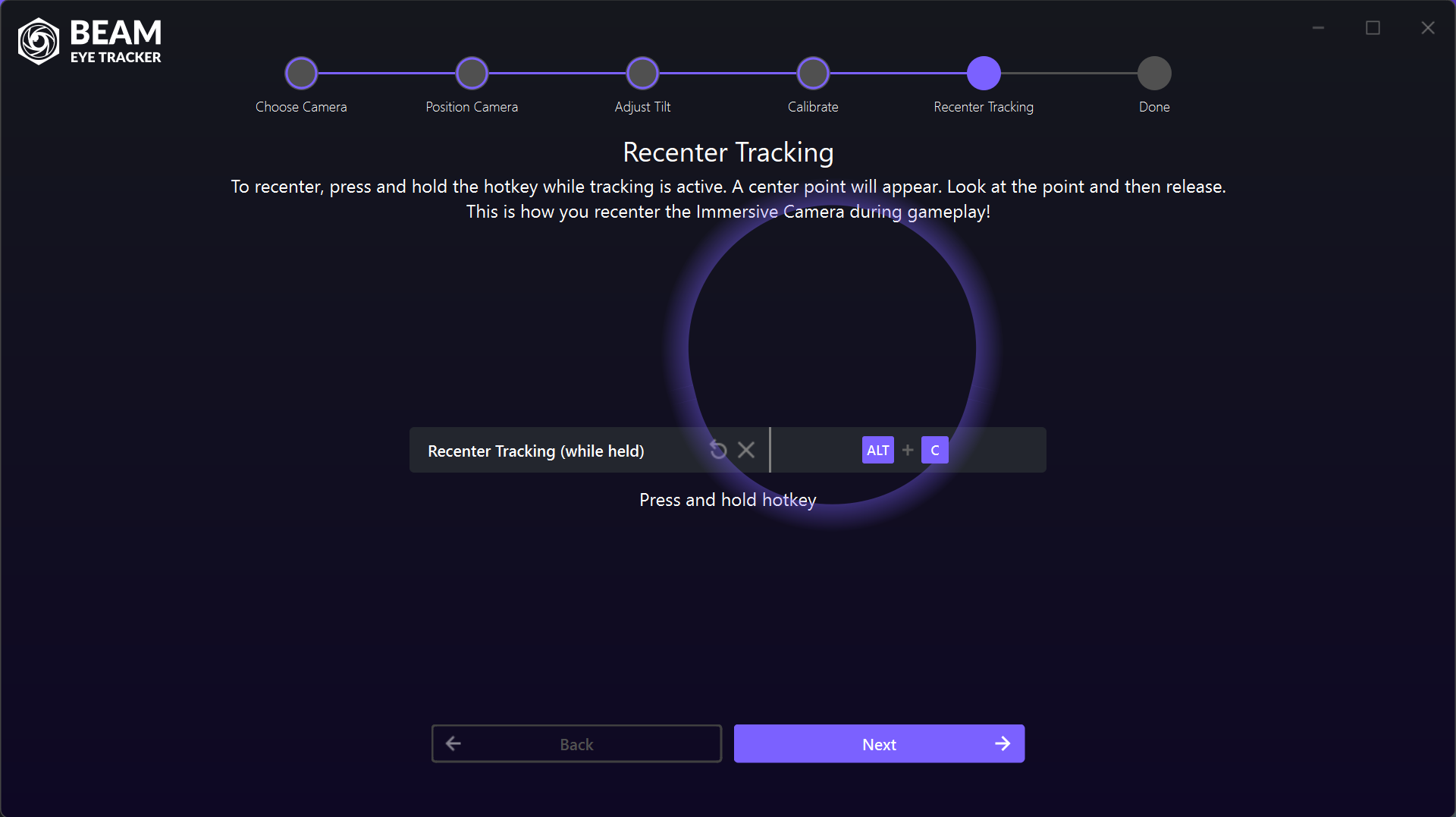
Recenter Tracking
On this screen you'll set your Recenter Tracking hotkey. During gameplay, press and hold it while tracking is active. A center point will appear. Look at the point and then release. This is how you recenter the Immersive Camera.
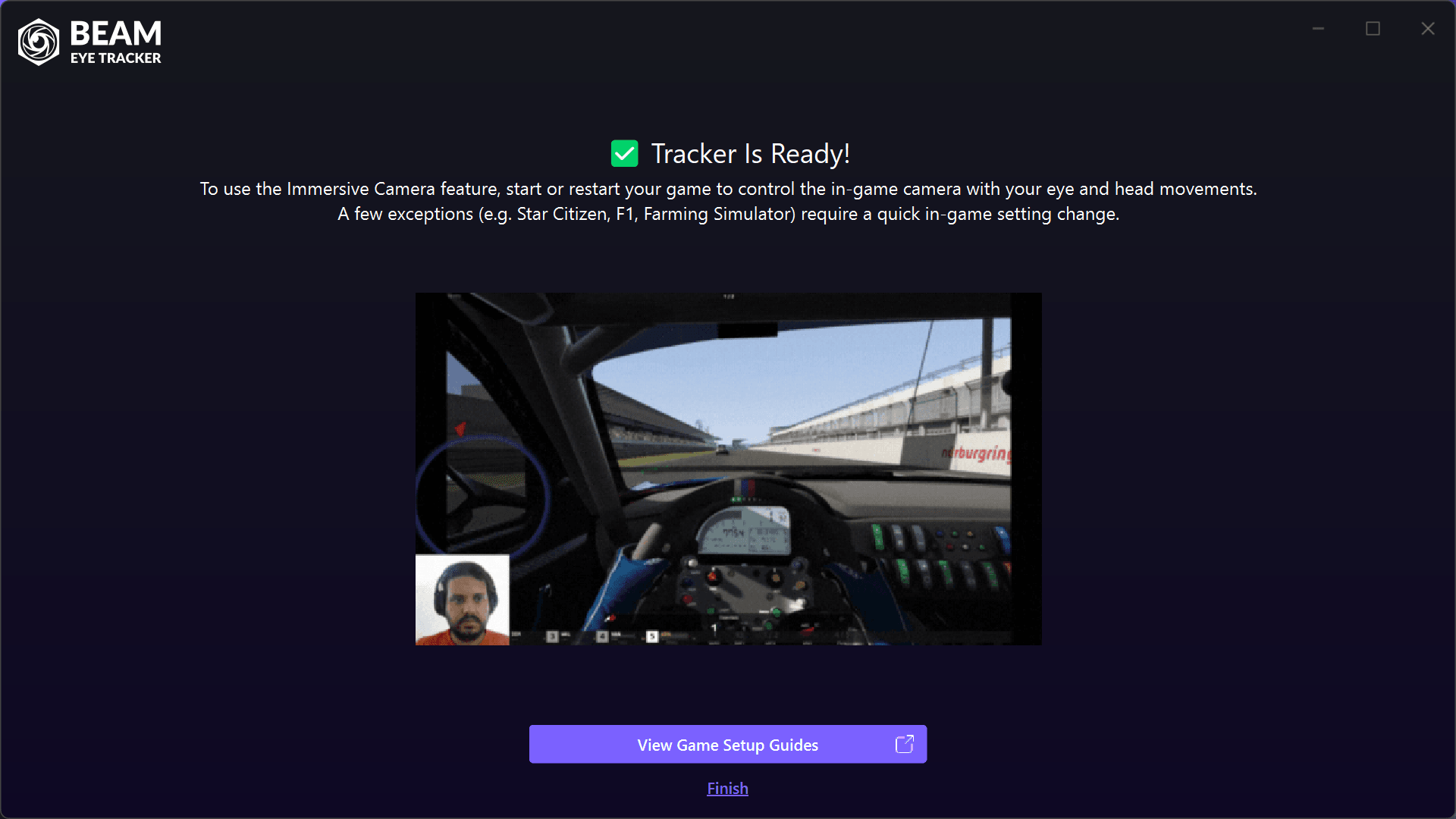
Tracker Is Ready!
You're all set. Start your game to control the in-game camera with your eye and head movements. A few exceptions (e.g. Star Citizen, F1, Farming Simulator) require a quick in-game setting change.