Skip to content

We use cookies to improve your experience on our website. See our privacy policy.

  • Games
  • Guides
  • Support
  • Webcams
  • Pricing
    • Get Started
    • Extensions
    • Developers
    • Affiliates
    • Blog
Account Steam TRY RISK-FREE
  • Games
  • Guides
  • Support
  • Webcams
  • Pricing
    • Get Started
    • Extensions
    • Developers
    • Affiliates
    • Blog
    • Standalone · Account
    • Steam
TRY RISK-FREE

iOS App Extension Setup for the Beam Eye Tracker

Turn your iPhone/iPad into an eye tracker with the Beam Eye Tracker iOS app
Minimum Requirements
  • PC with Windows 10 (or later)
  • iPhone or iPad that supports Face ID and iOS 13 (or later)

1

Download the Beam Eye Tracker iOS app

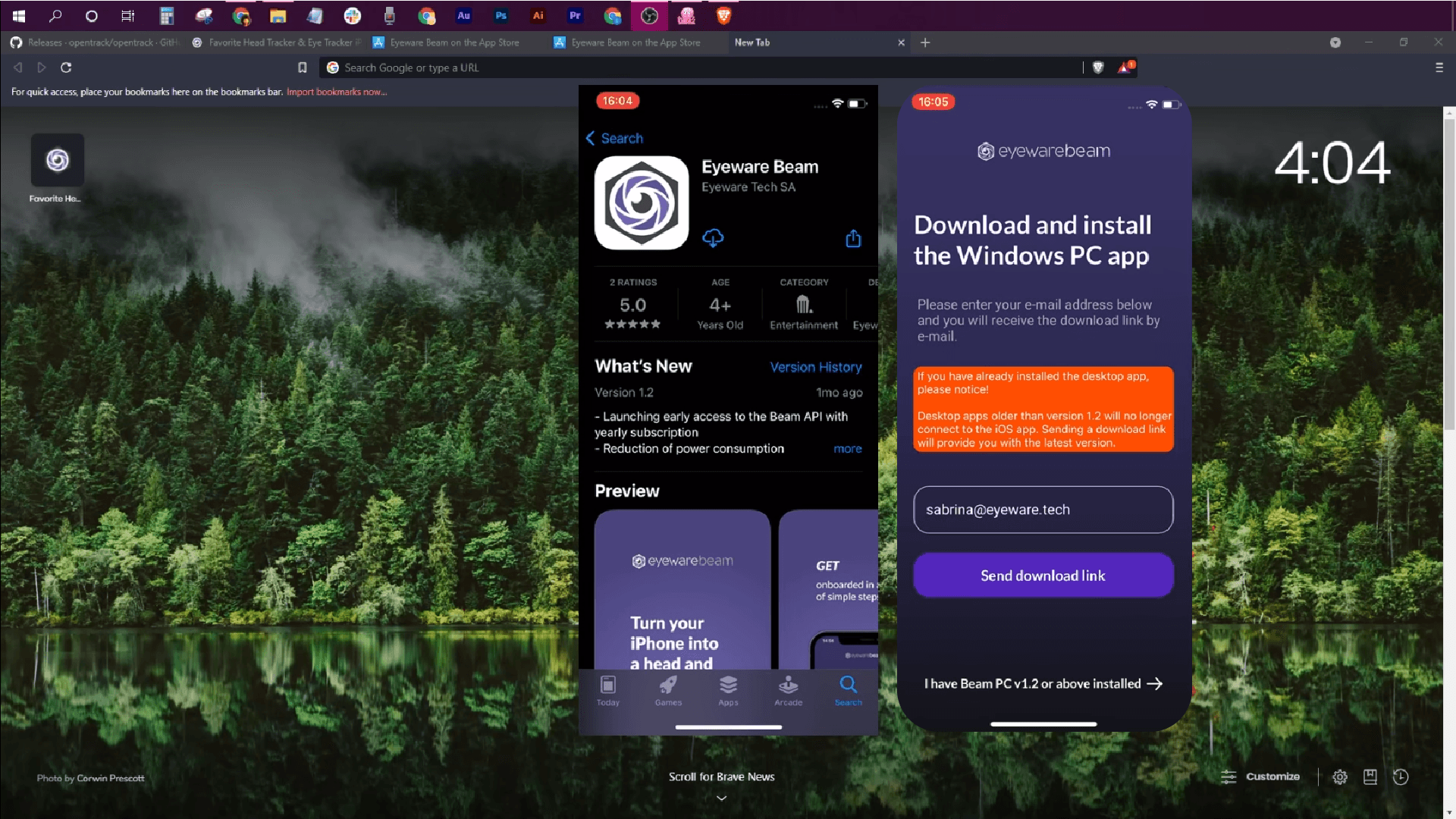
Download the Beam Eye Tracker iOS app from the app store.
During installation, enter your email to receive the PC software installer link or use the link in step 2.

iOS app download and PC installer link screen

2

Download Beam Eye Tracker PC Software

Get access to the Beam Eye Tracker . A free demo is available on Steam.
Download and install following the instructions.

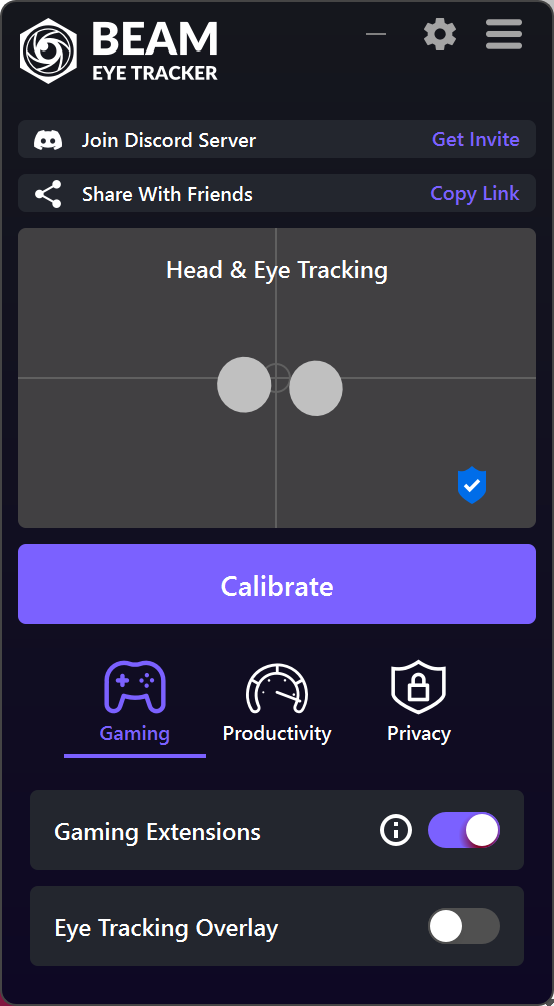
Note: If the Eyeware Beam icon doesn’t appear on your desktop, check the system tray (bottom-right corner) for the purple logo. You can then drag and pin it to your taskbar for easy access.

Beam Eye Tracker - UI

3

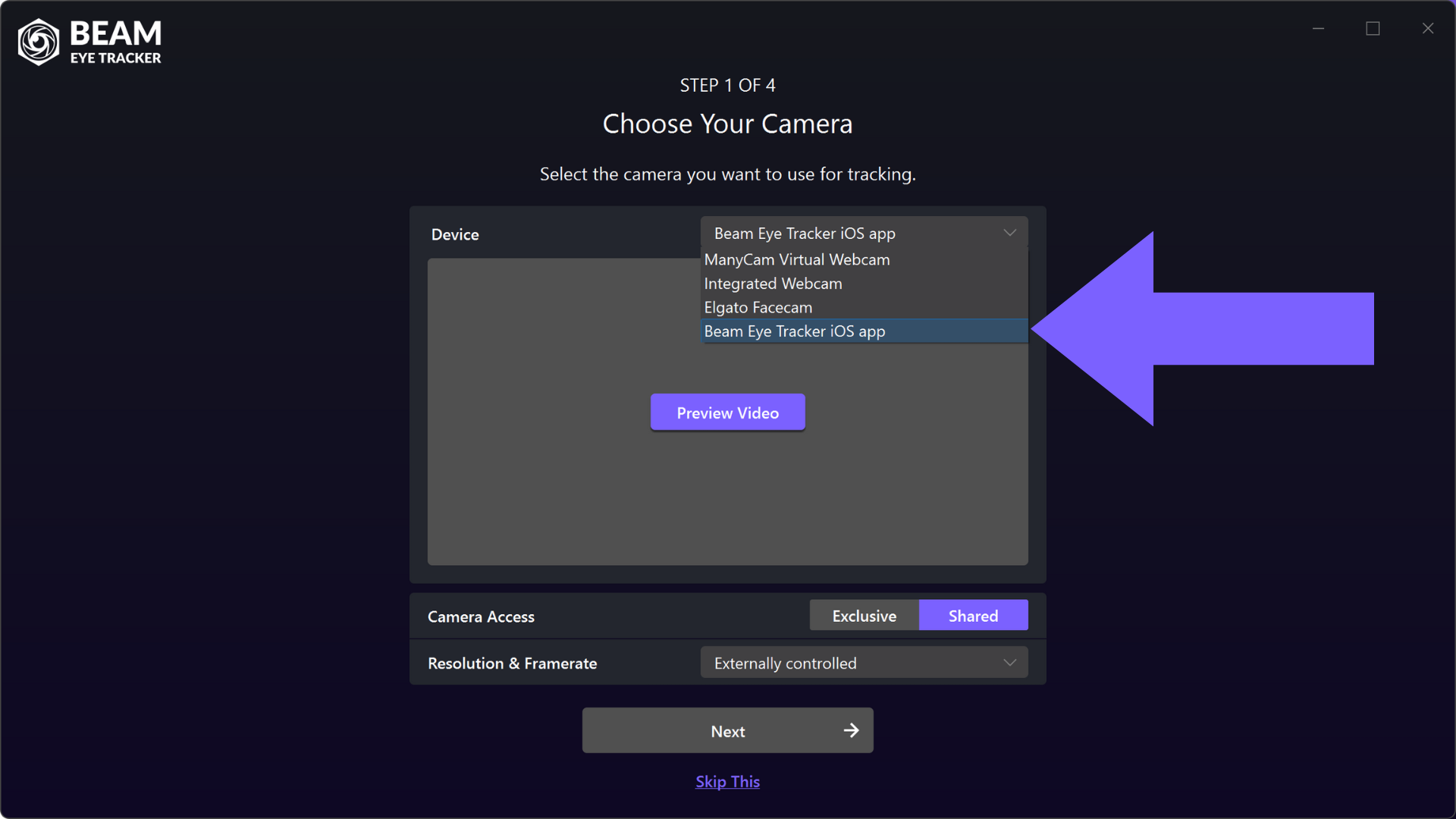
Select Beam Eye Tracker iOS app as the Input Device

In the first step of the Quick Setup process select the Beam Eye Tracker iOS app under Input > Device.

Note: If you wish to adjust the input settings at a later point, go to Settings > Camera > Input > Device.

Beam Eye Tracker - Select Beam Eye Tracker iOS app camera input - Quick Setup

4

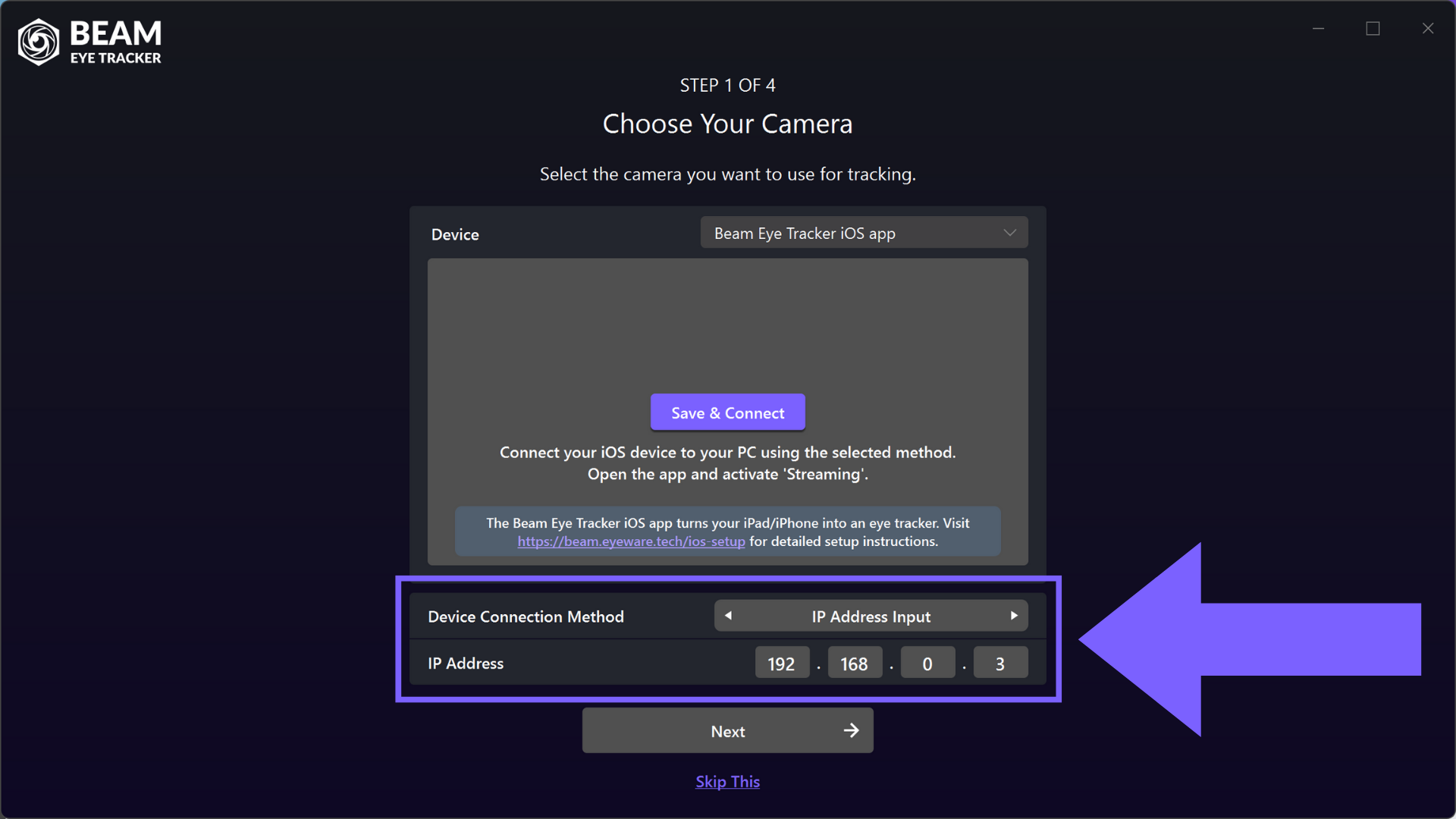
Select the Device Connection Method

Specify how you want to connect to the iOS device running the Beam Eye Tracker iOS app. 

Personal Hotspot

Use your iOS device’s Personal Hotspot feature to create a local network and connect your PC to it. Works wireless or wired (preferred), if you connect your device to the PC over USB. Data charges may apply if your PC access the internet.

IP Address Input

Manually connect to your iOS device by entering its IP address. Your device and PC must be on the same local area network. The IP address is displayed on your Beam Eye Tracker iOS app main screen. Look for “My IP is: XXX.XXX.X.X”.

Beam Eye Tracker - Select Beam Eye Tracker iOS app camera input - Connection Method

5

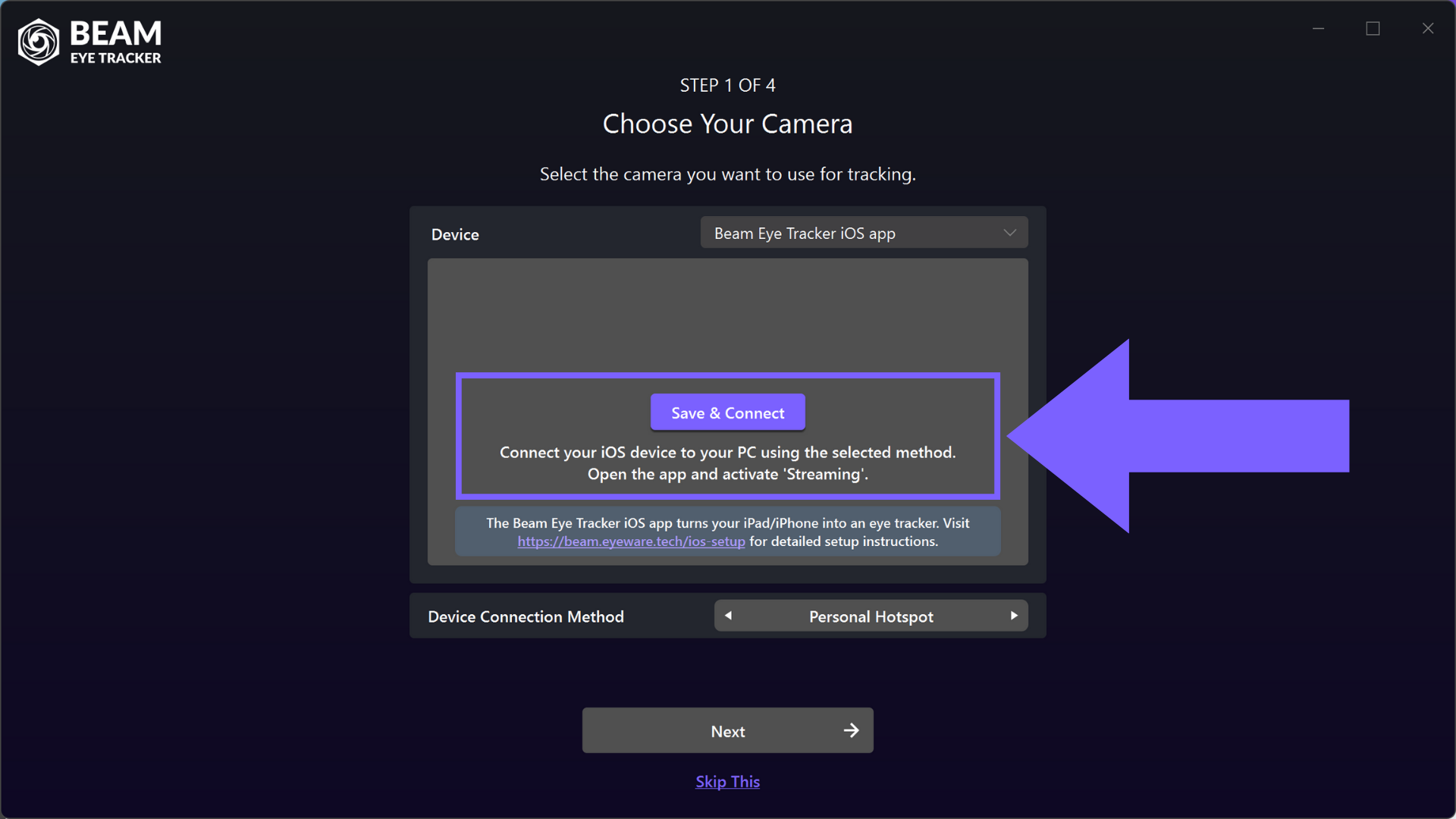
Establish connection to the Beam Eye Tracker iOS app

Select Streaming on the Beam Eye Tracker iOS app before connecting.
Click on Save & Connect and allow a moment for the new settings to load.
The Save & Connect button will change to Preview Video.

Troubleshooting: If the connection wasn’t established, please revisit the previous step.

Beam Eye Tracker - Select Beam Eye Tracker iOS app camera input - Start Streaming, Save, Connect

6

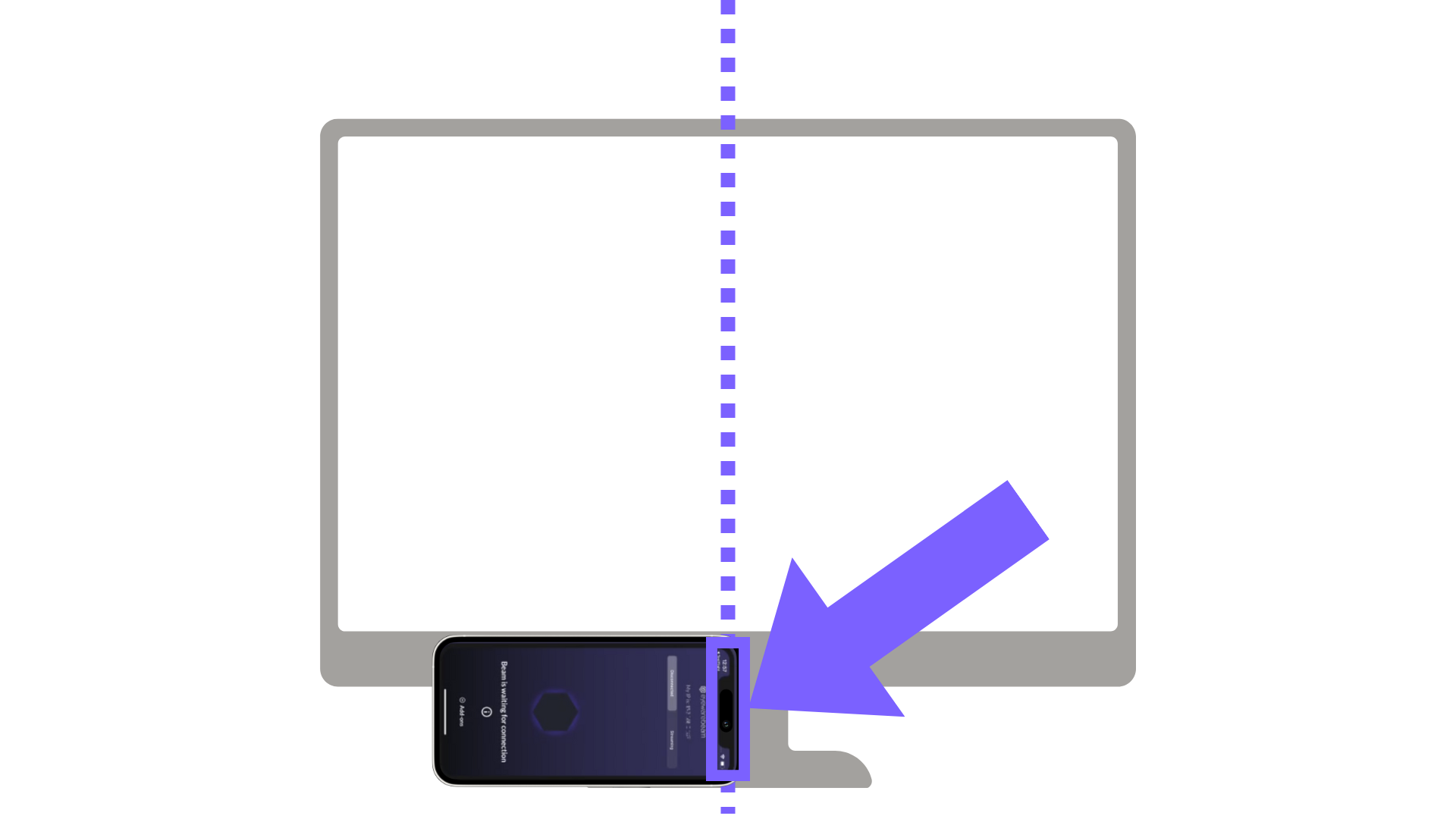
Position your iPhone/iPad

Position your iPhone/iPad in landscape mode facing you, with the selfie camera to the right, either below or above the monitor.
Align the camera with the center of the monitor, not the device itself.

Don’t worry if it’s not perfectly centered as calibration will compensate for that.
You can click on Preview Video button that appeared in the previous step verify if your face and eyes are visible to the camera. 

Beam Eye Tracker - Camera Position in Settings

7

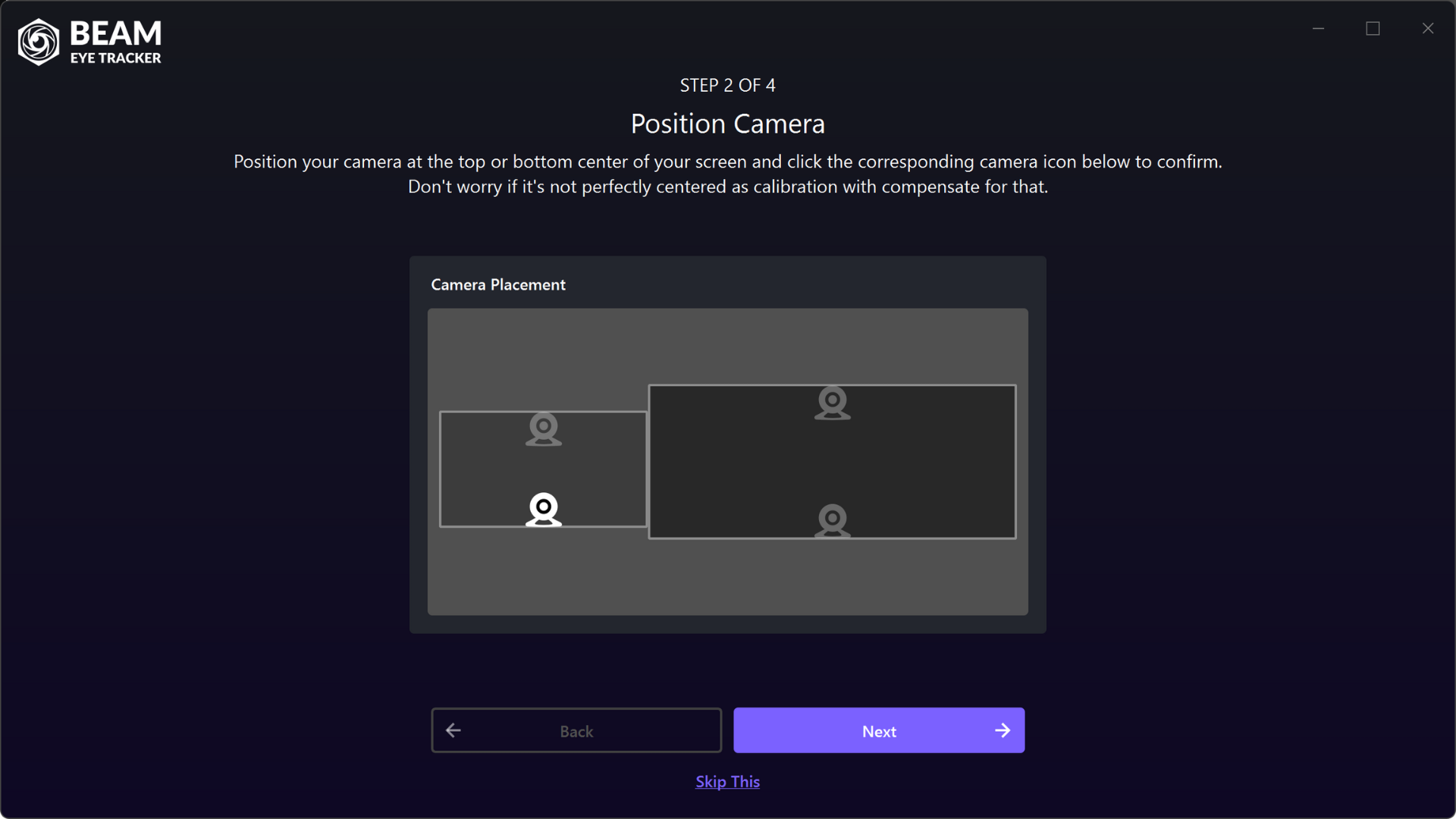
Continue with your setup of the Beam Eye Tracker

Proceed with the setup by following the instructions outlined in Step 2 of the Quick Setup guide. From this point forward, the process is identical for any other webcam.

Beam Eye Tracker - Quick Setup Step 2

  • Discord
  • Steam
  • Reddit
  • YouTube
  • Twitter
  • Instagram
  • Facebook
  • TikTok
English
  • English
  • Deutsch
  • Español
  • Français
  • Italiano
  • Polski
  • Português
  • Русский
  • 日本語
  • 한국어
  • 简体中文
  • 繁體中文

© Eyeware Tech SA  |  Terms  |  Privacy  |   Swiss Flag  Swiss Software